
Using HCL DB2 Docker image with a Commerce Toolkit
- Jędrzej Małkiewicz
- May 3, 2024
- 2 min read
Introduction
HCL Software U, a portal offering online training sessions on HCL products, provides several courses on installing various HCL Commerce development environments. These courses include instructions on installing and configuring IBM DB2 for Windows to support HCL Commerce's local development. This article will introduce an alternative method that bypasses the need to install DB2 for Windows by utilizing the DB2 Docker image included with HCL Commerce.
Benefits of using HCL Commerce DB2 Docker
Using DB2 Docker images has the following benefits:
it allows database restorations from a higher environments, for example you may have a process where you periodically backup and restore a database from a test environment to development environments;
databases to support different projects can be set up quickly;
installation and maintenance of development environment is easier (you are anyway suggested to use Docker for the Elasticsearch based HCL Commerce environments).
Implementation
To follow along you need a fresh HCL Toolkit installation. You’ll also need a Docker runtime and a HCL Commerce DB2 Docker image that matches your toolkit version (commerce/ts-db:9.1.15.0 in my case). The image needs to be loaded to a Docker registry that you have access to. In our case we’ll put it into our local registry using docker load command.
docker load -i HCL_Commerce_Enterprise_9.1.15.0_DB2_Server_x86-64.tgzYou can check if the image was loaded successfully by running that command
docker image ls | grep commerce/ts-dband the output should be similar to:
commerce/ts-db 9.1.15.0 86b17afbe56b 4 months ago 4.94GBNow we’ll start the image and check the connectivity to the database (make sure that nothing is running on port 50000 or adjust the port number).
docker run -d -e LICENSE=accept --privileged -p 50000:50000 --name db2-local commerce/ts-db:9.1.15.0To check if the image is running execute the following command:
docker inspect $(docker ps -q --filter name=db2-local) --format "{{.Name}} {{.State.Status}} {{.Config.Image}}"upon successful execution, the terminal will display the following output:
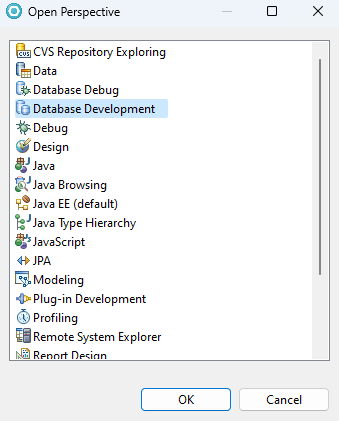
/db2-local running commerce/ts-db:9.1.15.0Let’s try to connect to the database! In the toolkit (RAD) open “Database Development” perspective.
Configure a new DB2 connection.
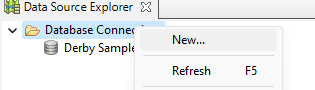
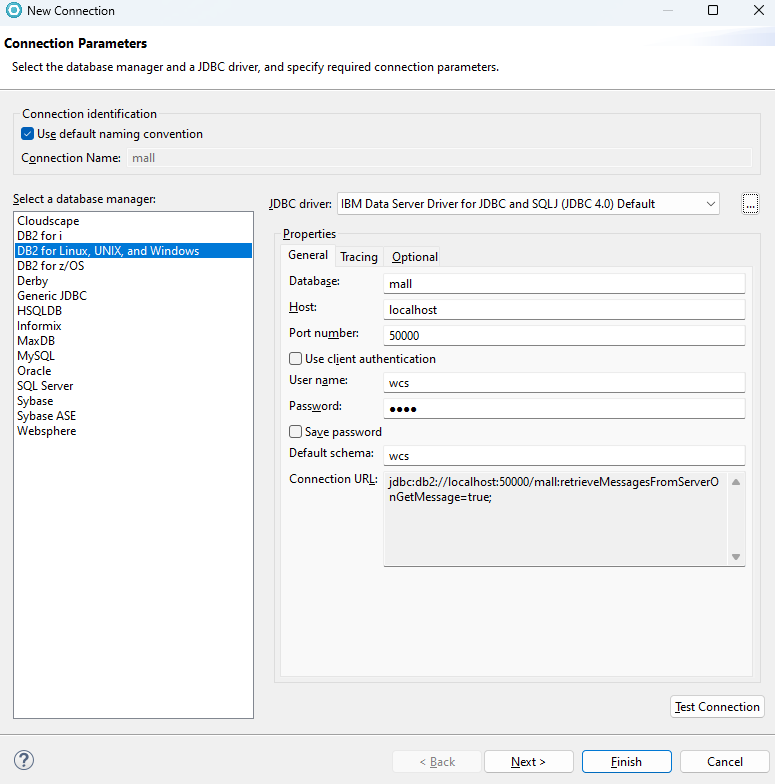
If the connection is successful you should see a message like this.

It's time to configure the toolkit for database use. To do this, close RAD, open a Windows terminal, and execute the setdbtype.bat command from the bin folder of your toolkit installation, ensuring to replace TOOLKIT_DIR with the actual location, such as C:\WCDE_90.
setdbtype.bat db2 TOOLKIT_DIR\lib\db2 mall db2inst1 diet4coke wcs wcs1 localhost 50000The final steps involve initiating the toolkit and republishing the WC application on the WebSphere Commerce Test Server.
When the server is up go to localhost/wcs/resources/store/1/configuration/com.ibm.commerce.foundation.inventorySystem?langId=-1, if everything is fine the respnse will show that the store is set up to use "Non-ATP" inventory system.
Final thoughts
The approach described facilitates the integration of the DB2 Docker image included with HCL Commerce, making it ideal for learning, experimentation, and proof of concept. However, in a real-world project you need to have a more complex process that requires to handle persistence, backup & restoration processes.
If you're interested in discovering more about incorporating DB2 Docker images into your development workflow, please reach out to us.